


Squarespace tutorials
Owner & Designer at Studio La Terre! Here, you'll find tons of free tutorials & educational content to help you level up your websites and business.
Hi, I'm Bree!

SEO tips
Showit Tutorials
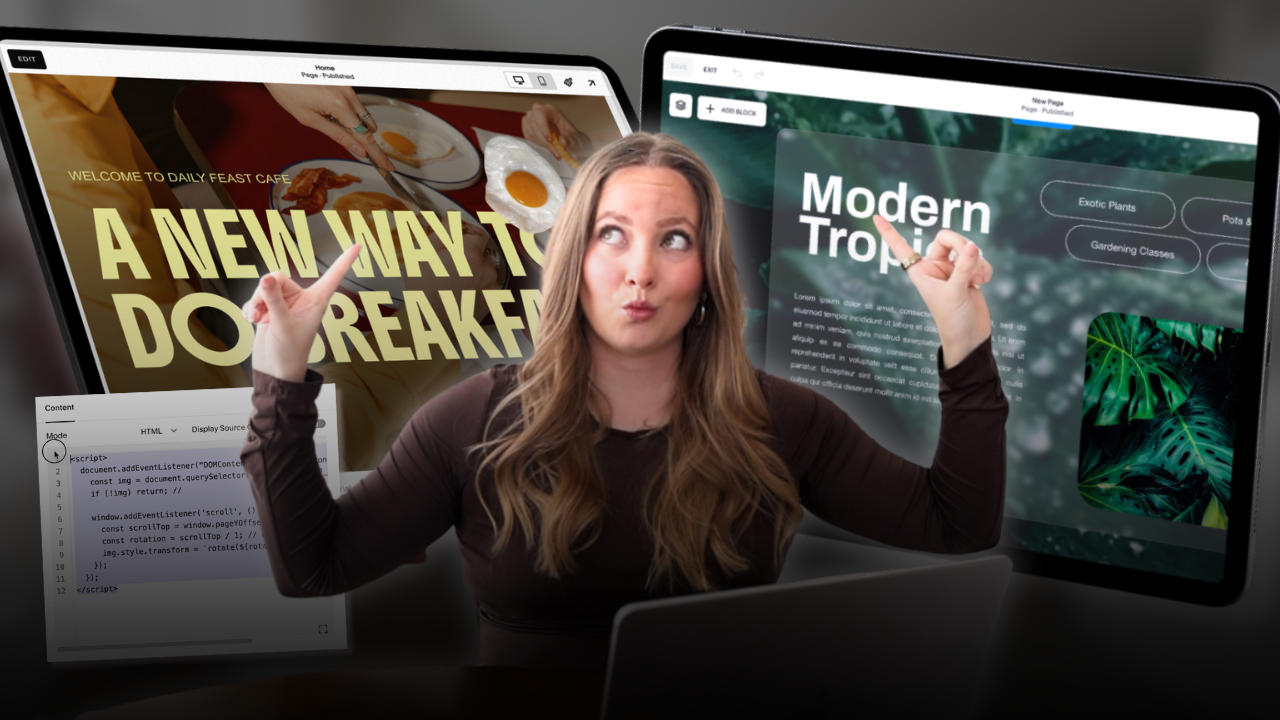
Squarespace often gets labeled as “boring” or “limited unless you know how to code.” But that couldn’t be further from the truth.
In this tutorial, I’ll show you multiple ways to add movement, interaction, and visual interest to your Squarespace website using only built-in tools — no custom code required. These techniques are perfect for showcasing galleries, services, processes, and calls to action in a way that feels polished and modern.
Let’s dive in.
1. Split Screen Sticky Scroll Effect
This effect keeps content on one side of the screen fixed while the other side scrolls. It’s a great way to highlight:
- Galleries
- Services
- Portfolio sections
- Featured content
How to Create It
- Add a new section
- Choose Blank Section
- Toggle off Fill Screen
- Create the sticky left side
- Add a Shape Block
- Resize it so it’s slightly taller than the section
- Pin it to the top (no offset needed)
- Add text content
- Insert a text block on top of the shape
- Pin the text as well
- Use the offset slider to position it slightly below the top so it doesn’t snap awkwardly
- Add scrolling content on the right
- Upload images or gallery items
- Set images to Fill
- Resize and customize as needed (corner radius, alignment, etc.)
- Duplicate the section
- Duplicate and stack multiple sections vertically
- Each section will maintain the sticky left side while new images scroll on the right
Why This Works
As users scroll, the left content stays in place while visuals move, creating a clean split-screen experience without any code.
2. Stacking Canvas Effect (Great for Services or Process)
This is one of the most visually impressive effects you can create in Squarespace. Each canvas “stacks” on top of the previous one as you scroll.
How to Create It
- Add a new blank section
- Turn off Fill Screen
- Add a Shape Block
- Style it however you like (background color, border, stroke, rounded corners)
- Add your content
- Text, images, icons — this works well for services or steps in a process
- Pin each element
- Pin the shape
- Pin all text and images
- Adjust offsets so everything sticks at the same vertical position
Tip: Elements that sit on the same horizontal grid line should use the same offset value.
- Increase section height
- Make the section taller to allow room for stacking
- This is essential for the effect to work properly
- Duplicate the canvas
- Duplicate the entire section
- Adjust the layer order so each new canvas appears on top
- Change background colors or content for visual contrast
Important Notes
- This process takes some trial and error
- Offsets may vary depending on text size
- Mobile layouts must be adjusted separately
The final result is a smooth, layered scroll experience that feels custom-built.
3. Sticky Text With Scrolling Images
This effect keeps text fixed while images scroll behind or around it, creating depth and motion.
How to Create It
- Add a blank section
- Insert large text
- Headers work especially well here
- Pin the text
- Adjust the offset so it stays in a comfortable position
- Add images
- Stagger images throughout the section
- Send some images backward so they scroll behind the text
Optional: Overlapping CTA Section
You can enhance this effect by:
- Adding a full-width image at the bottom
- Setting it to Fill
- Overlaying text and a button
This creates a natural transition into a call-to-action without a hard section break.
4. Layered Scrolling Marquee Effect
This is a subtle but powerful way to add movement to an About section or gallery.
How to Create It
- Add a blank section
- Insert a shape block and text
- This will be your main content
- Add a scrolling text block
- Go to Blocks → Scrolling
- Place it at the bottom of the section to avoid layout shifts
- Style the marquee
- Increase text size
- Slow down the animation
- Send it to the back
- Duplicate and layer
- Duplicate the scrolling text
- Alternate scroll directions
- Stack multiple layers behind your content
- Add images
- Resize and layer images on top for depth
The result is a dynamic section with subtle movement that feels intentional and high-end.
Final Thoughts
You don’t need custom code to create a dynamic Squarespace website. With strategic use of:
- Pinning
- Offsets
- Layering
- Section sizing
You can create interactions that feel custom and engaging.
This is just the beginning — there are countless ways to combine these techniques to make your site stand out.
If you enjoyed this tutorial, be sure to explore more Squarespace design tips and experiment with these effects on your own layouts.
Studio La Terre
© 2025 Studio La Terre
Privacy Policy
Terms & Conditions


Navigation
Resources
Connect
Return Policy
HOME
WEBSITE TEMPLATES
CANVA TEMPLATES
FLODESK TEMPLATES
BLOG
HOW IT WORKS
CUSTOMER SHOWCASE
CONTACT US
BECOME AN AFFILIATE
Let's Be Friends
TEMPLATE SUPPORT
