


Squarespace tutorials
Owner & Designer at Studio La Terre! Here, you'll find tons of free tutorials & educational content to help you level up your websites and business.
Hi, I'm Bree!

SEO tips
Showit Tutorials
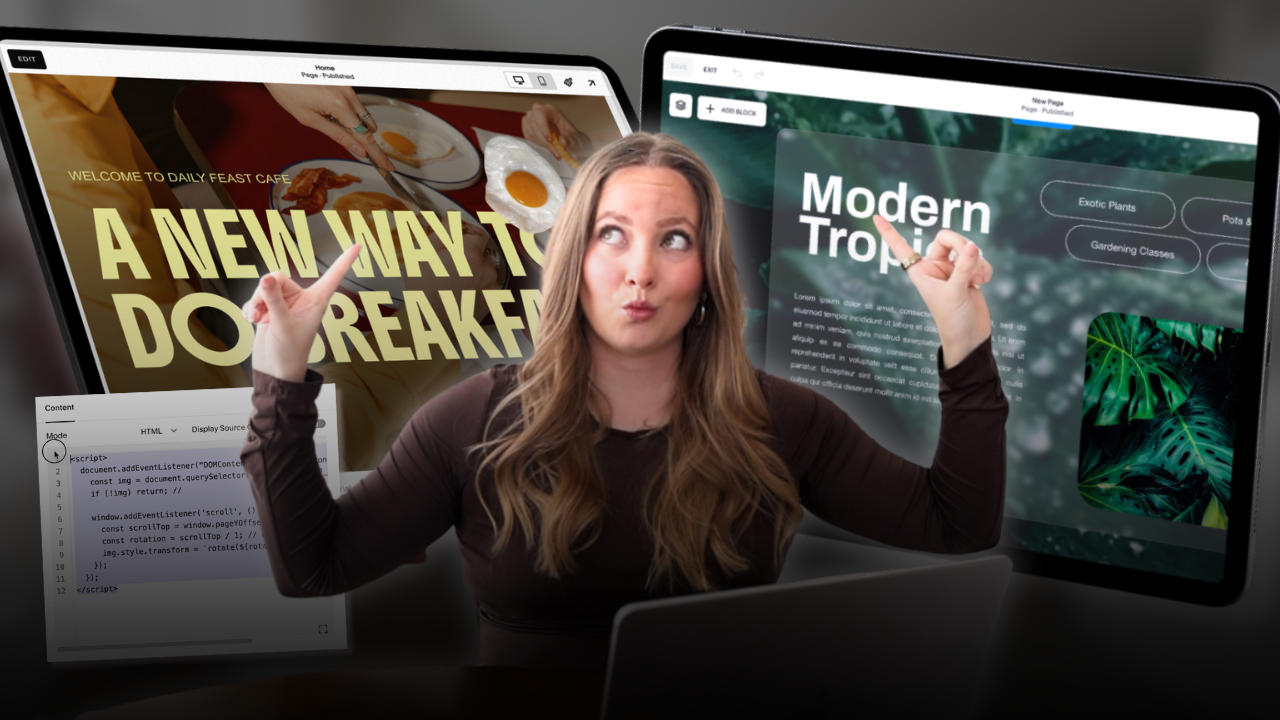
If you’re new to Squarespace — or using a template you purchased from a designer — the platform can feel a little intimidating at first. The good news? Squarespace is built to be edited visually, without code.
In this walkthrough, we’re covering the core features you actually need to know to confidently customize your Squarespace website, from pages and styles to editing content and mobile layouts.
Squarespace Dashboard Overview
When you log into Squarespace, you’ll land on your dashboard. This is where you can:
- Create new websites
- Access existing sites
- Pin projects you’re actively working on
To start a new site, click Create Website. From there, you can:
- Choose a pre-made Squarespace template
- Build your own template
- Start completely blank
Templates can be filtered by industry, purpose, or layout style, making it easy to find something that fits your business.
Managing Pages & Navigation
Inside your site, the Pages panel controls your entire site structure.
Adding Pages
You can add:
- Blank pages
- Pre-designed page layouts
- Collections (shop pages, blogs, portfolios, etc.)
Using layouts is a great way to avoid starting from scratch.
Duplicating Pages
Already like a page layout? Duplicate it.
- Click the gear icon
- Select Duplicate Page
- Update the page title and URL slug
This is especially helpful when working with templates.
Deleting vs. “Not Linked”
Instead of deleting pages you might need later:
- Drag them into Not Linked
- This removes them from navigation without permanently deleting them
Deleted pages are only recoverable for 30 days, so this is a safer option.
Editing Site Styles (Fonts, Colors & Buttons)
Your Site Styles control the global look of your website. You can access this through the left panel or the paintbrush icon.
Fonts
You can customize:
- Heading fonts
- Paragraph fonts
- Button fonts
- Font sizes, spacing, weight, and case
Squarespace uses Google and Adobe Fonts. Custom fonts require CSS, but most users won’t need that.
Colors & Color Themes
Instead of styling each section manually, Squarespace uses color themes.
When you update a color palette or theme:
- Changes apply sitewide
- Any section using that theme updates automatically
You can:
- Paste in hex codes
- Pull colors from images
- Use recommended palettes
This system makes global design changes fast and consistent.
Buttons & Forms
You can customize:
- Button shapes (rounded, pill, outline, etc.)
- Padding and borders
- Hover effects
- Form field styles and submit animations
Primary, secondary, and tertiary buttons can each have their own style.
Animations & Spacing
Under Miscellaneous Settings, you can apply site-wide animations like:
- Fade
- Slide
- Scale
- Clip
You can also control animation speed, spacing, margins, and image block behavior — though most beginners won’t need to adjust these right away.
Assets, SEO & Built-In Tools
Assets
Upload all your images and files into the Assets panel to reuse them throughout your site.
SEO & AI Tools
Squarespace includes:
- SEO checklists
- Page previews
- Keyword suggestions
- AI-generated meta descriptions and copy
These tools are especially helpful if SEO isn’t your strong suit.
Selling Products, Services & Content
Squarespace includes built-in tools for:
- Physical products
- Digital downloads
- Services
- Gift cards
You can also create:
- Memberships
- Courses
- Paid content libraries
Everything — payments, content, and customer access — lives inside the platform.
Scheduling, Email & Analytics
Squarespace also offers:
- Scheduling (powered by Acuity)
- Email campaigns
- Invoicing
- Donations
- Built-in analytics
This makes it possible to run most service-based businesses without third-party tools.
Editing Your Website Content
Click Edit to enter the visual editor.
Each page is divided into sections, which you can:
- Edit
- Duplicate
- Rearrange
- Save
- Delete
Editing Sections
Within each section, you can:
- Adjust layout and spacing
- Add dividers
- Set background colors, images, or videos
- Choose from pre-made layouts
Drag-and-Drop Blocks
Add blocks like:
- Text
- Images
- Buttons
- Forms
- Galleries
- Videos
- Accordions
Everything snaps to a grid to keep layouts clean.
Editing Text, Images & Buttons
Text Editing
You can:
- Change headings vs paragraphs
- Resize text without affecting global styles
- Highlight, underline, or animate text
- Change colors for individual words
Images
Image settings allow you to:
- Change shapes
- Add overlays
- Apply effects (grain, parallax, etc.)
- Adjust corner radius and fit
Buttons
Buttons can link to:
- Pages
- URLs
- Files
- Email addresses
- Phone numbers
You can also switch between primary, secondary, and tertiary styles.
Using the Pin (Sticky) Feature
Squarespace allows you to pin elements so they stay fixed while scrolling.
You can:
- Pin text or images
- Choose top, middle, or bottom placement
- Adjust the scroll offset
This is perfect for storytelling sections or image-heavy layouts.
Adding Sections & AI Website Copy
New sections can be:
- Blank
- Saved sections
- Pre-designed layouts
Squarespace also includes AI text generation, which can:
- Generate starter copy
- Adapt to your industry and location
- Be edited afterward for tone and clarity
Great for breaking writer’s block.
Mobile Editing & Previewing
Squarespace includes a dedicated mobile editor, allowing you to:
- Rearrange sections
- Adjust spacing
- Improve readability on smaller screens
Always check mobile before publishing — most visitors will see your site there first.
Use Preview Mode to see animations, layouts, and interactions before going live.
Final Thoughts
Squarespace is a powerful, all-in-one platform that’s designed to grow with your business. Once you understand:
- Pages
- Site styles
- Sections
- Blocks
- Mobile editing
…you can confidently customize any Squarespace design without touching code.
Studio La Terre
© 2025 Studio La Terre
Privacy Policy
Terms & Conditions


Navigation
Resources
Connect
Return Policy
HOME
WEBSITE TEMPLATES
CANVA TEMPLATES
FLODESK TEMPLATES
BLOG
HOW IT WORKS
CUSTOMER SHOWCASE
CONTACT US
BECOME AN AFFILIATE
Let's Be Friends
TEMPLATE SUPPORT
