


Squarespace tutorials
Owner & Designer at Studio La Terre! Here, you'll find tons of free tutorials & educational content to help you level up your websites and business.
Hi, I'm Bree!

SEO tips
Showit Tutorials
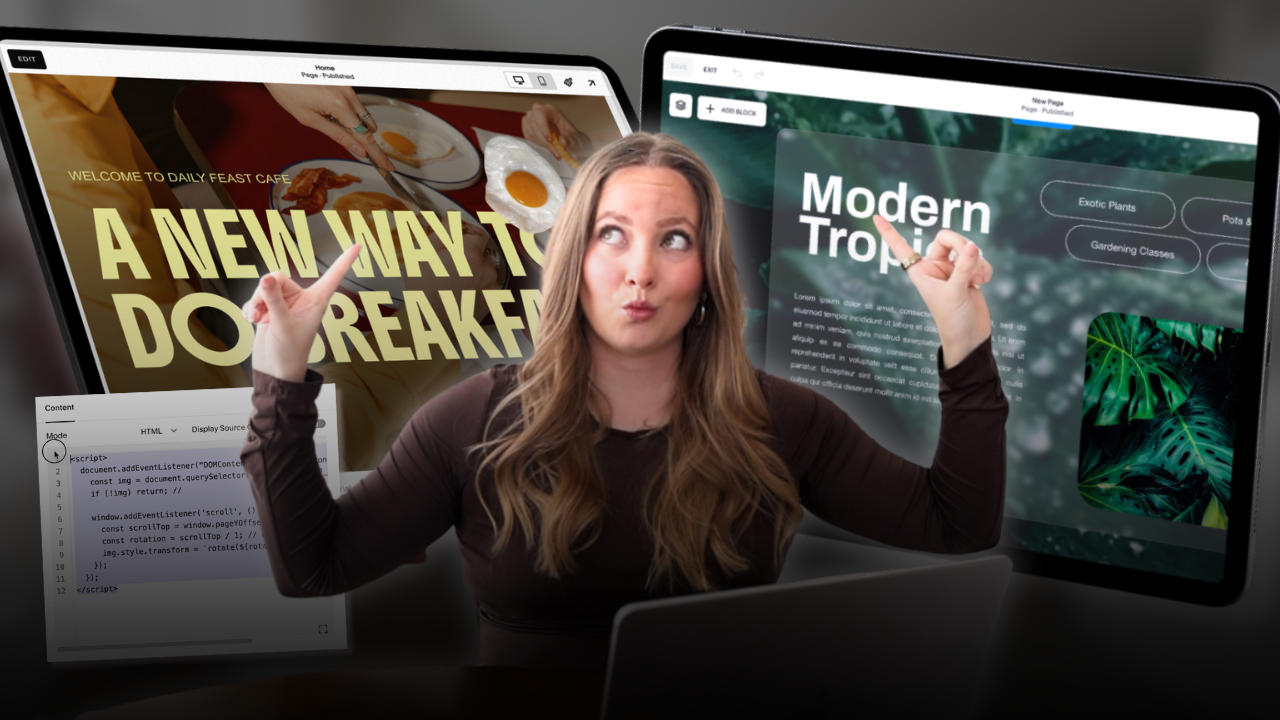
In this tutorial, you’ll learn several eye-catching animations and interactive effects you can add to your Showit website — whether it’s for your own brand or a client project. Some of these effects use Showit’s built-in tools, while others use simple copy-and-paste code that requires no prior coding experience.
All code referenced can be pasted directly into Showit and lightly customized.
Custom Cursor (With Code)
A custom cursor is a subtle but powerful way to add personality and branding to your site.
How to Add a Custom Cursor
- Open the page where you want the cursor applied.
- Click the page name (top section).
- Open Advanced Settings → Custom CSS.
- Paste in the provided cursor code.
Create Your Cursor Image
- Size: 32px × 32px
- Format: PNG
- Design tools: Canva, Photoshop, or similar
Upload & Link the Image
- Upload the cursor image to Showit.
- Click the link icon to copy the image URL.
- Paste the URL into the CSS where indicated.
- Save and preview your site.
⚠️ The cursor won’t show inside the Showit editor — only in Preview or live mode.
Scrolling Progress Bar (With Code)
This adds a slim progress bar that shows visitors how far down the page they’ve scrolled.
Setup Steps
- Add a blank canvas to your page.
- Set the canvas background to transparent.
- Add an Embed Code element.
- Paste in the provided progress bar code.
Canvas Settings
- Resize the canvas height to 1px
- Drag it to the bottom of the page
- Set the canvas to Sticky → Bottom
Customize the Color
- Open the embed code
- Replace the hex color with your brand color
- Save and preview
This creates a clean, unobtrusive progress indicator that feels modern and intentional.
Infinite Scrolling Gallery / Logo Marquee (With Code)
This effect creates a smooth, looping gallery — perfect for:
- Brand logos
- Portfolio images
- Featured work
- Client highlights
Add the Gallery
- Add an Embed Code element.
- Paste in the scrolling gallery code.
- Resize the embed box to your desired height.
Add Images
- Upload images to your Showit media library.
- Copy each image URL.
- Paste URLs into the code where indicated.
- Duplicate image lines as needed for seamless looping.
Customize the Gallery
You can adjust:
- Image size (desktop & mobile separately)
- Scroll speed
- Number of images
- Mobile vs desktop behavior
Lower speed values = faster scrolling.
Using Multiple Galleries on One Page
- Each gallery must have a unique class selector
- Example:
marquee-wrappermarquee-wrapper-1
- This prevents code conflicts and allows different settings per gallery.
Reverse Stacking Canvases (No Code)
This is one of the most requested Showit effects and works beautifully for:
- Services
- Process steps
- Timeline-style layouts
Initial Setup
- Start with a canvas containing a title or intro section.
- Add a new blank canvas underneath.
- Add a full-width shape (rounded corners work well).
- Add your text and images inside the shape.
Enable Sticky Behavior
- Click the canvas.
- Set Sticky → Bottom on Scroll.
- Adjust the offset (use negative values).
Example offsets:
- First canvas:
-530 - Second canvas:
-610 - Third canvas:
-690
These values will vary depending on canvas height.
Important Notes
- Test and tweak offsets until canvases nest smoothly
- Mobile offsets must be set separately
- You can stack as many canvases as you’d like
Switching Galleries (No Code)
This effect creates two galleries that move in opposite directions when clicked.
Setup
- Add a blank canvas.
- Add two gallery elements.
- Upload images to both galleries.
- Align galleries side-by-side or stacked.
Assign Gallery Numbers
- Gallery 1 → assign as Gallery 1
- Gallery 2 → assign as Gallery 2
Add Navigation Buttons
- Add arrows or shape buttons.
- Assign click actions:
- Arrow → Gallery 1 → Next
- Same arrow → Gallery 2 → Previous
- Reverse directions for the back arrow.
Final Step
- Set both galleries to Slide under gallery settings.
- Preview and adjust spacing as needed.
- Update mobile layouts separately.
Final Thoughts
These animations are designed to:
- Add motion without overwhelm
- Increase engagement
- Make your Showit site feel more premium
You don’t need to use all of them — even one or two thoughtfully placed effects can dramatically elevate your design.
Studio La Terre
© 2025 Studio La Terre
Privacy Policy
Terms & Conditions


Navigation
Resources
Connect
Return Policy
HOME
WEBSITE TEMPLATES
CANVA TEMPLATES
FLODESK TEMPLATES
BLOG
HOW IT WORKS
CUSTOMER SHOWCASE
CONTACT US
BECOME AN AFFILIATE
Let's Be Friends
TEMPLATE SUPPORT
